 KK Home App Docs
Smart Lock App Guide
Set up and manage your KK Home smart lock — registration, pairing, passwords, fingerprints, auto-lock, away mode, sharing, and the G1 gateway.
The KK Home App is free to download. All pictures in this guide are for illustration purposes only. The actual product may vary due to application upgrades.
How to Register
Download the app
Download the KK Home App from Google Play or the App Store.
Verify and create
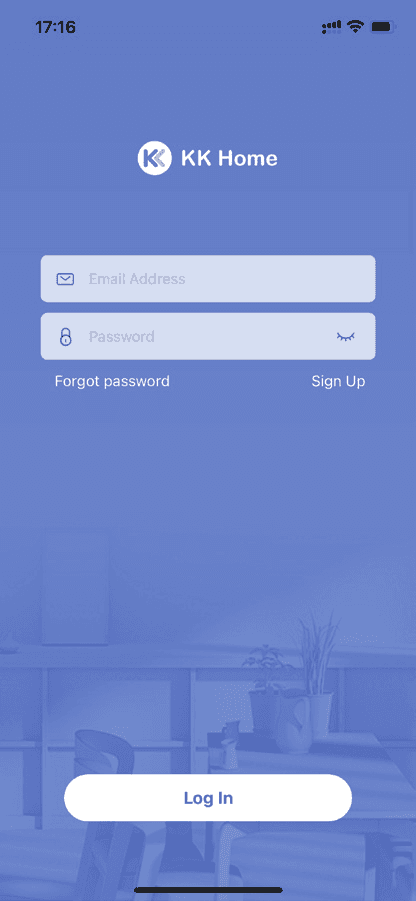
Fill out the information and tap Get Code. A verification code will be sent to the email inbox you registered. Enter the code you received, then tap Create to complete.
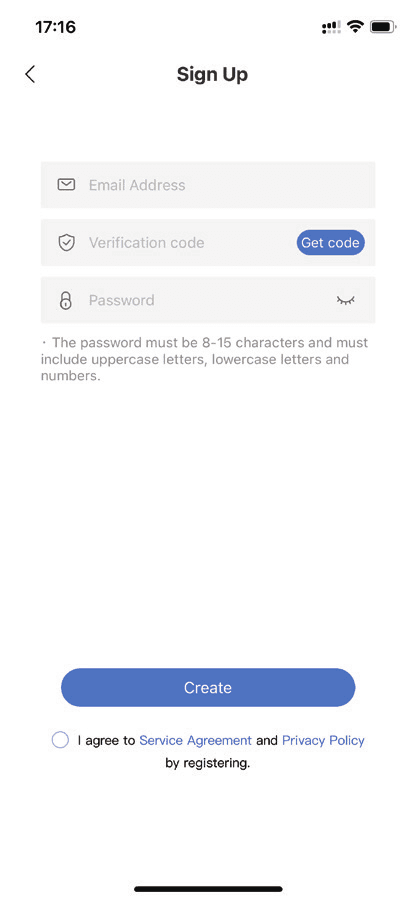
The password must be 8–15 characters and must include uppercase letters, lowercase letters, and numbers.
Pairing Your Lock
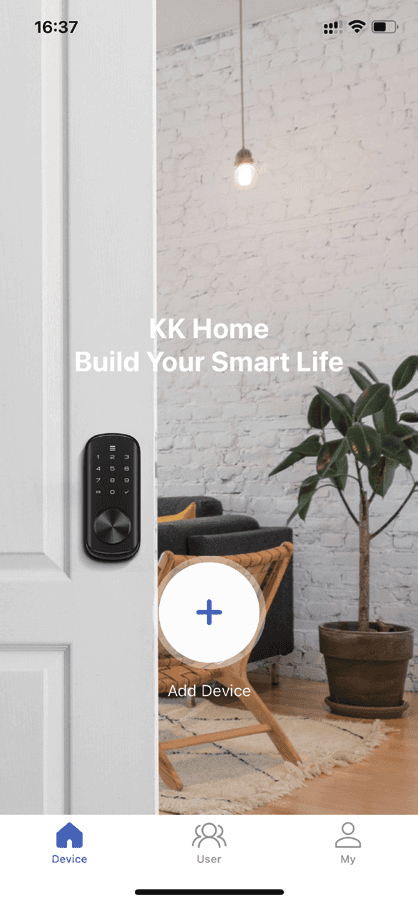
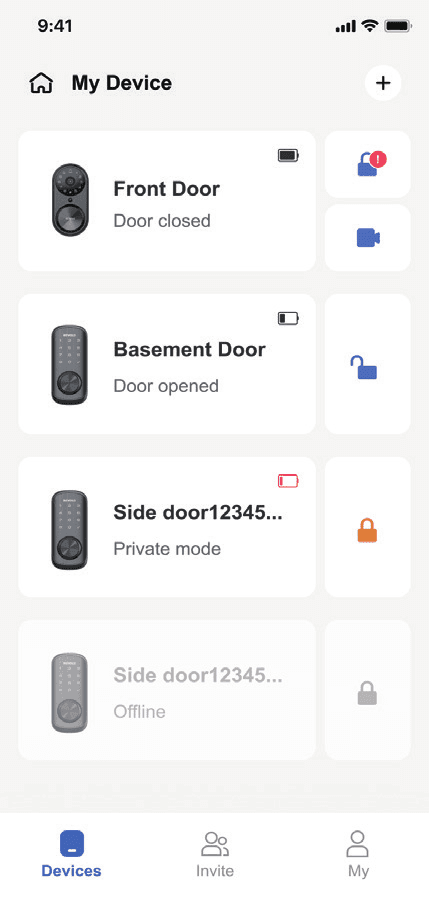
Find your lock
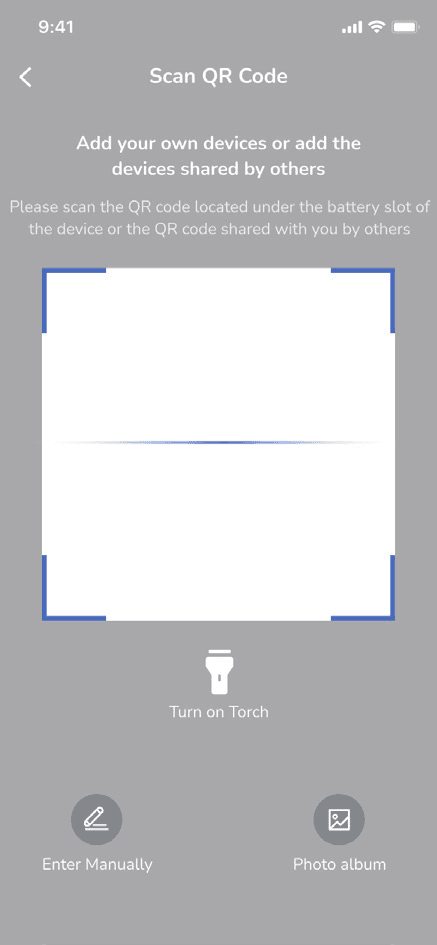
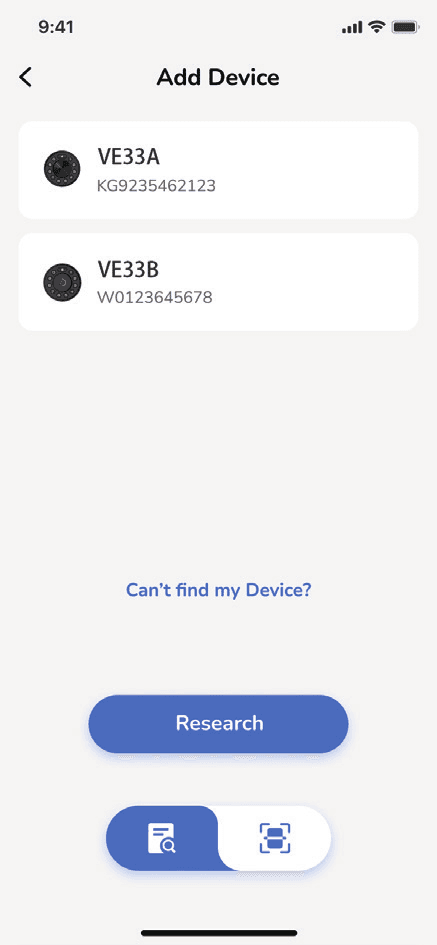
Add the device by searching for nearby devices or by scanning the QR code.
- Option 1 — search for devices automatically.
- Option 2 — scan the QR code or enter the ESN manually.
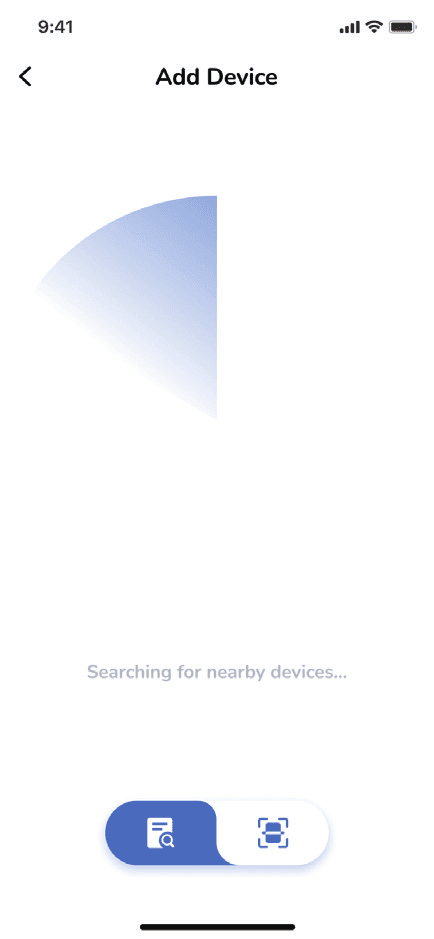
Start pairing
Tap your device to start pairing.
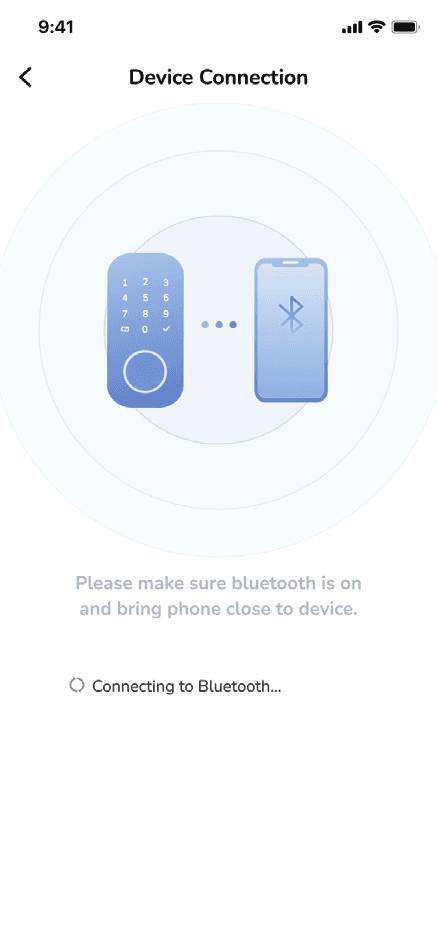
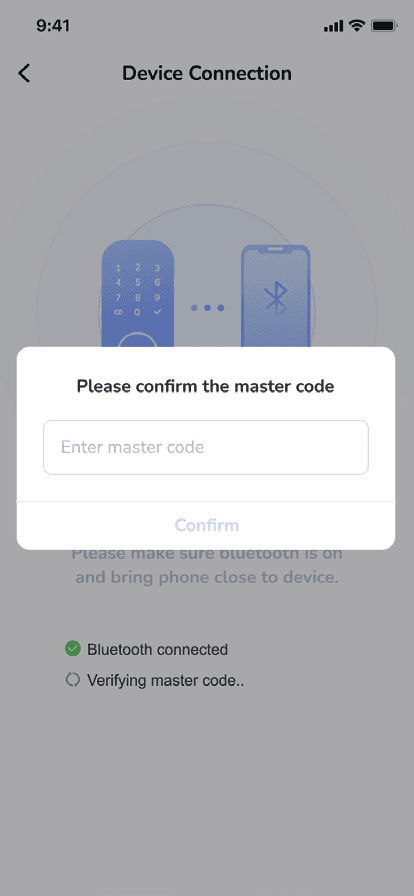
If you have changed the default master code on the lock, please enter your new master code.
Name your lock
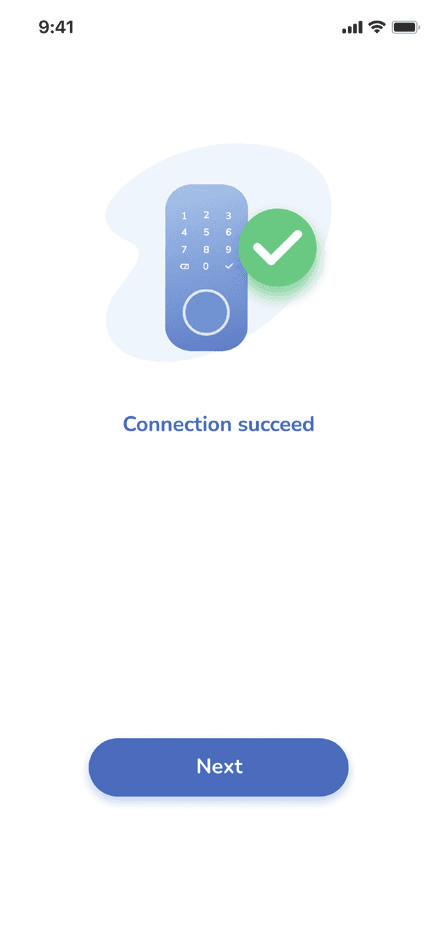
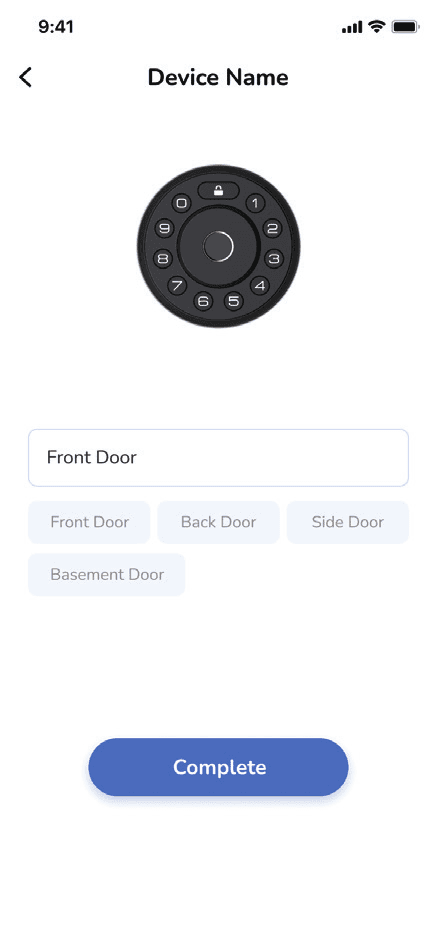
Once pairing is successful, name your lock and complete the setup.
Lock Page Overview
Tap the icon to lock or unlock your door.
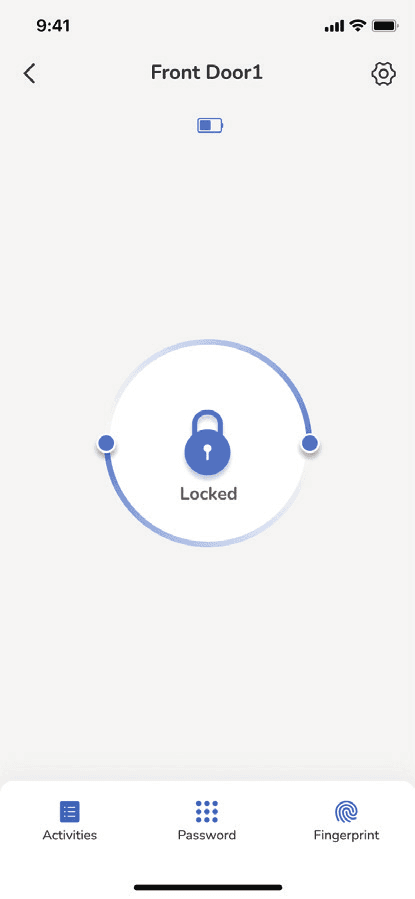
- Activities — check unlock, lock, and alert records.
- Password — generate 4 different types of passcodes and check the list of passcodes.
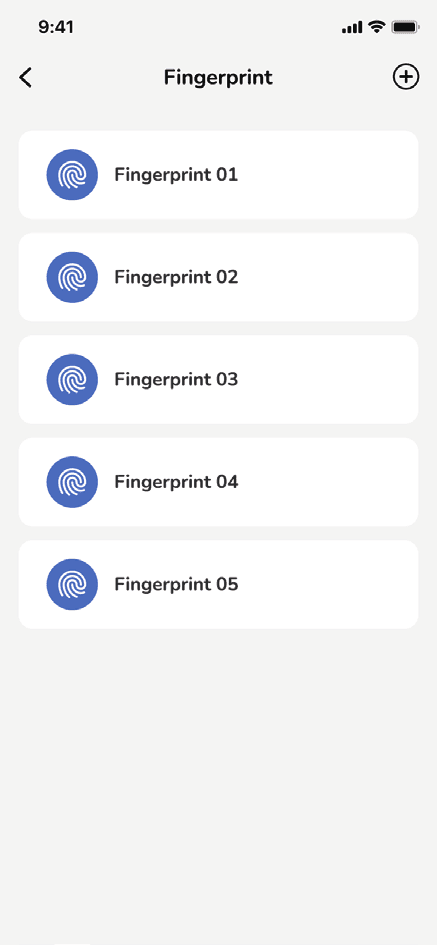
- Fingerprint — set up fingerprints and check the list of fingerprints. (VE33A does not have a fingerprint page.)
Password
A total of 20 passwords can be set up and stored. There are 4 types of passwords:
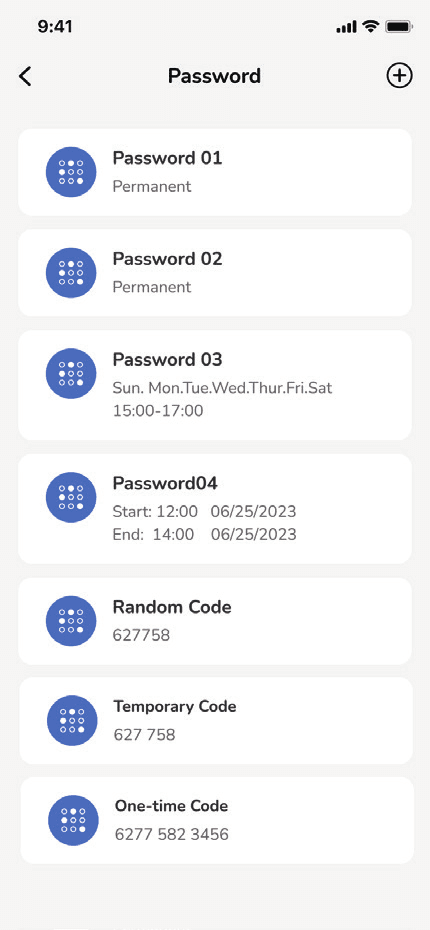
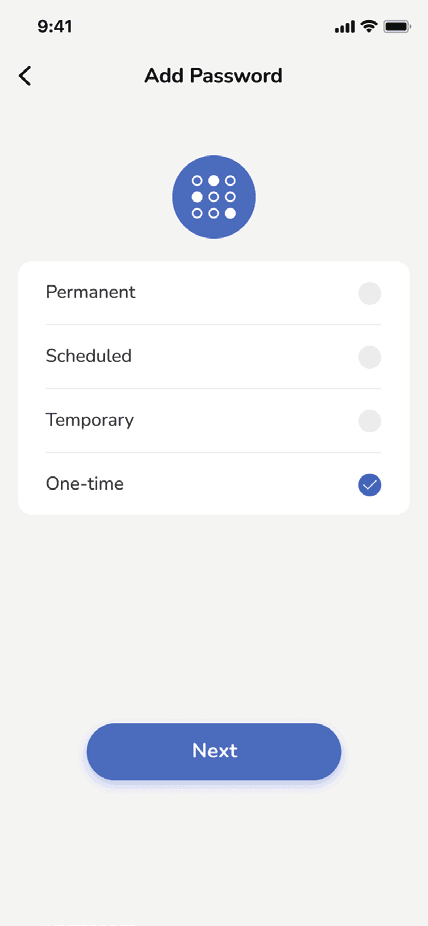
| Type | Definition |
|---|---|
| Permanent | Lasts permanently |
| Scheduled | Lasts for scheduled hours weekly |
| Temporary | Lasts for scheduled hours |
| One-time | One-time use |
Permanent and scheduled passwords require a Bluetooth connection to generate. Temporary and one-time passwords can be generated anywhere and anytime.
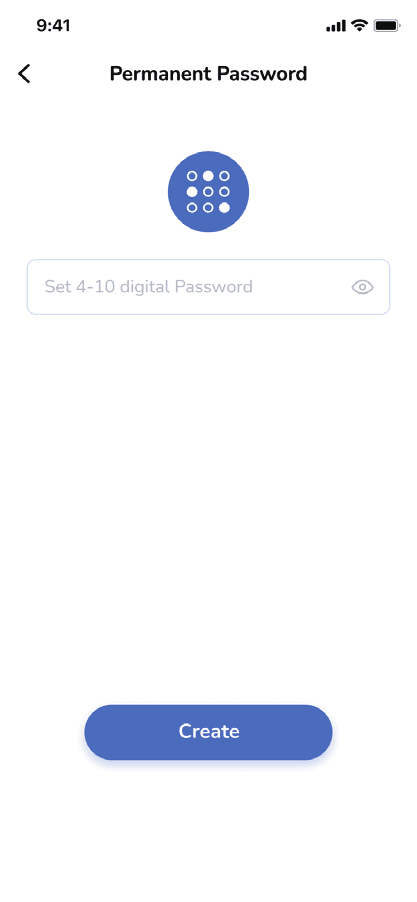
Permanent password
- Enter a 4–10 digit password.
- Tap Create.
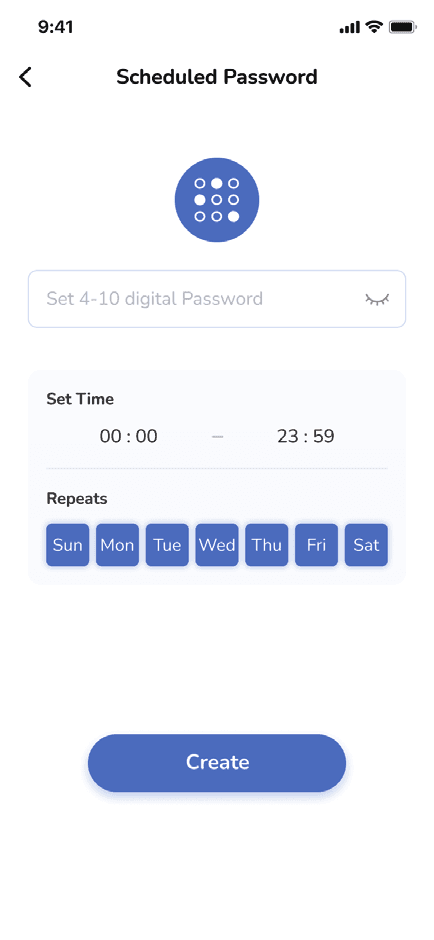
Scheduled password
- Enter a 4–10 digit password.
- Set up the valid time and repeat days (choose one or more days).
- Tap Create.
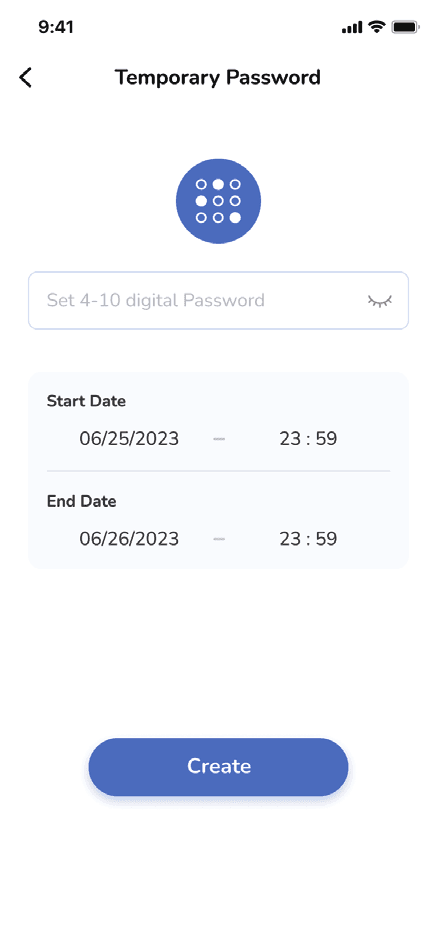
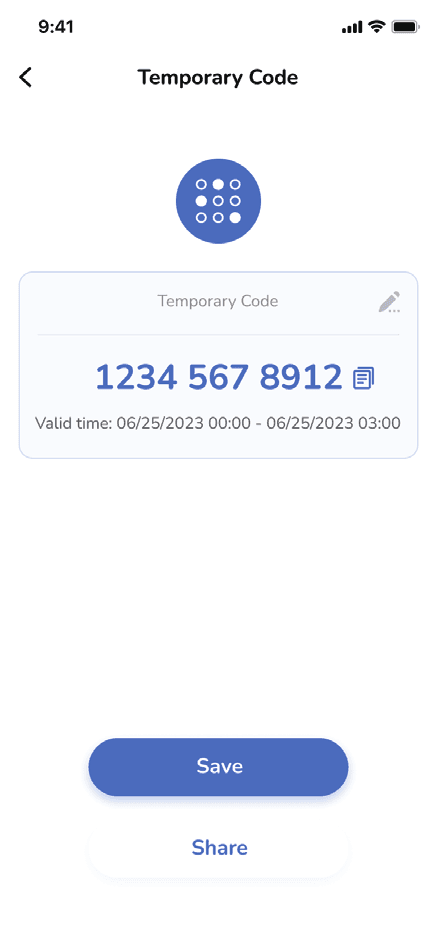
Temporary password
- Enter a 4–10 digit password.
- Set up the start date and end date.
- Tap Create.
One-time password
An 11-digit one-time password is generated automatically. You can set up 10 one-time passwords within one hour.
Fingerprint
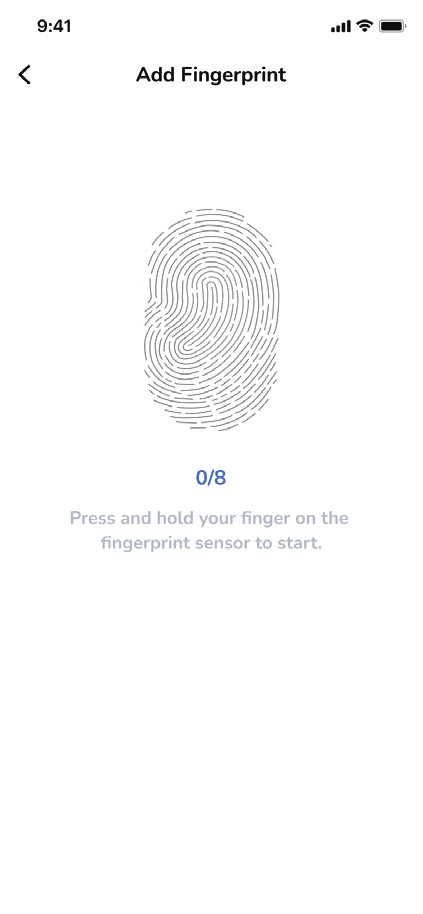
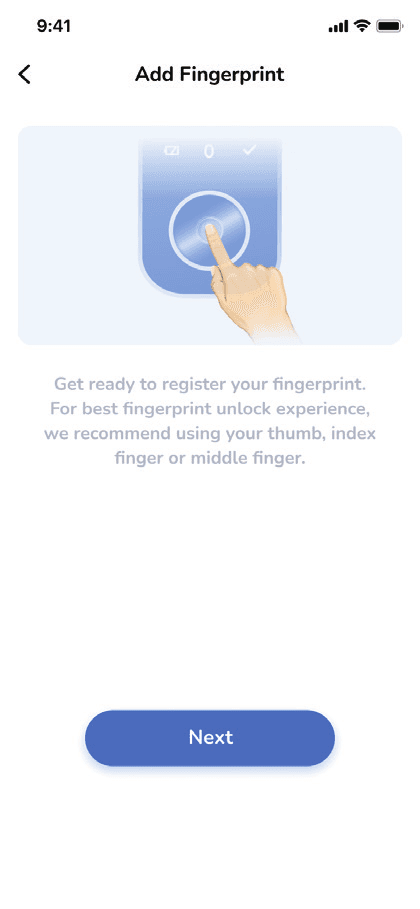
Set up fingerprints for quick unlocking and manage the list of saved fingerprints. For the best unlock experience, register your thumb, index finger, or middle finger, then press and hold your finger on the sensor to start.
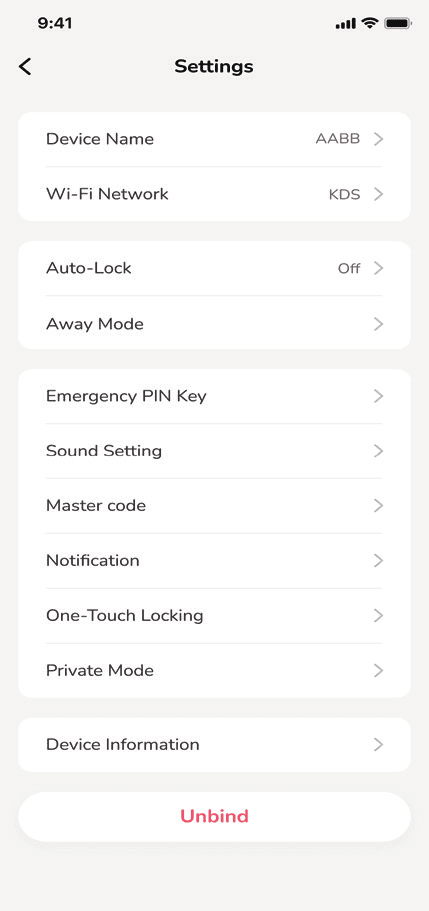
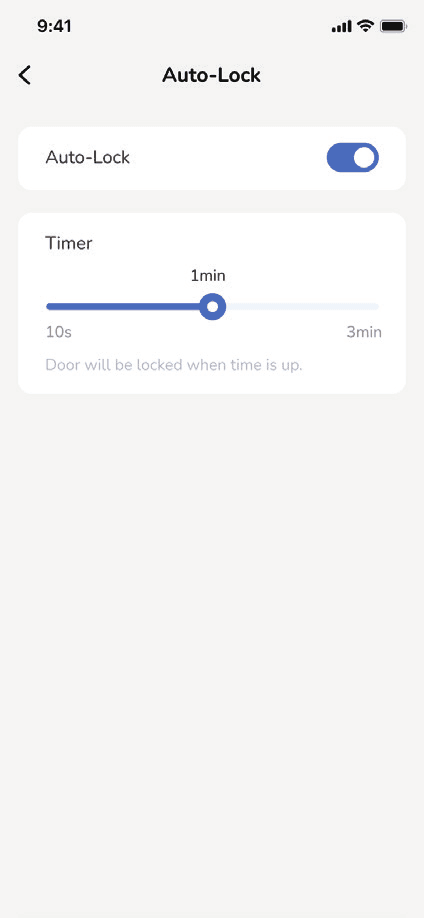
Auto-Lock
Enable auto-lock and the lock will lock automatically in 30 seconds. The auto-lock time can be changed in Auto-Lock.
Away Mode
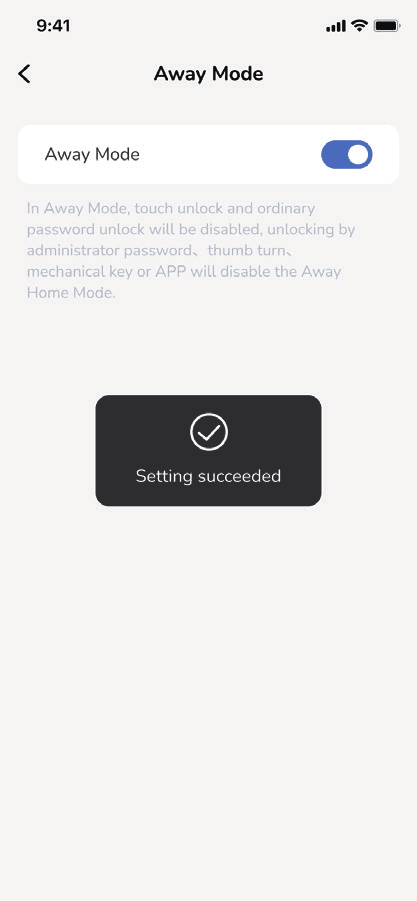
- This is a safety feature for when you leave your house for a vacation or a long trip. When you activate away mode, all user PIN codes will be invalid until the master PIN code is entered on the keypad.
- When the lock is unlocked by the thumb turn or key, an alarm will sound for 1 minute. By entering the master PIN code on the keypad, you can disable the alarm and away mode.
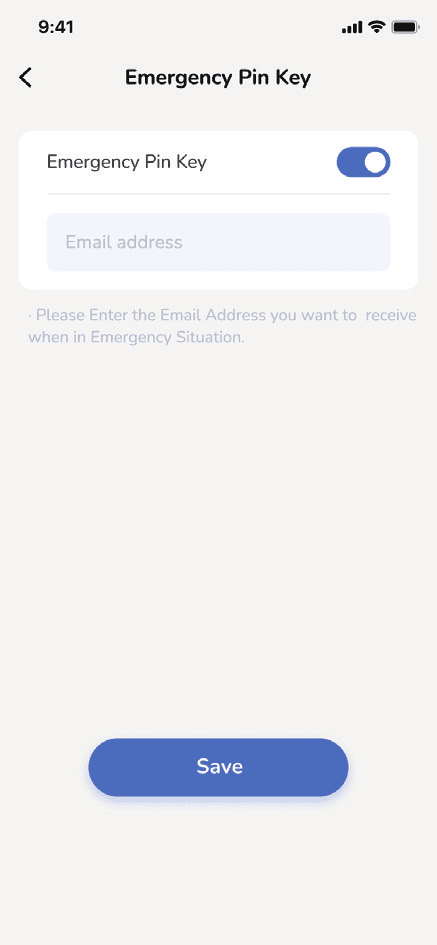
Emergency PIN Key
Enter 911 before a password and it will send a help message to the email ID you set up previously.
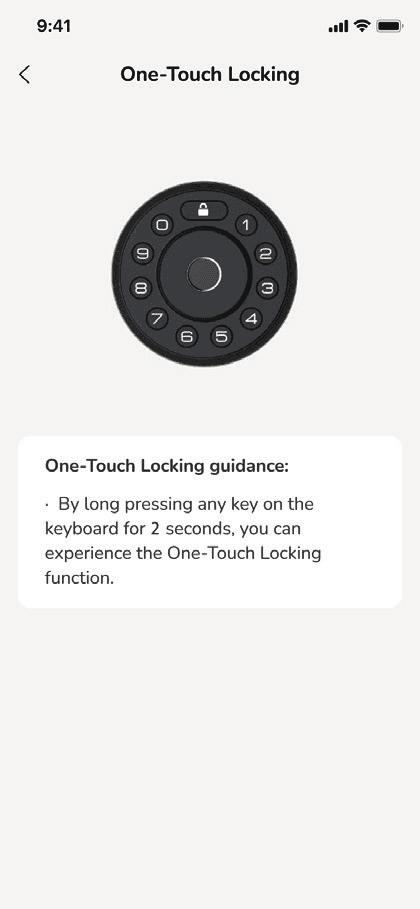
One-Touch Locking
Press and hold any button for 2 seconds to lock manually from the outside.
Private Mode
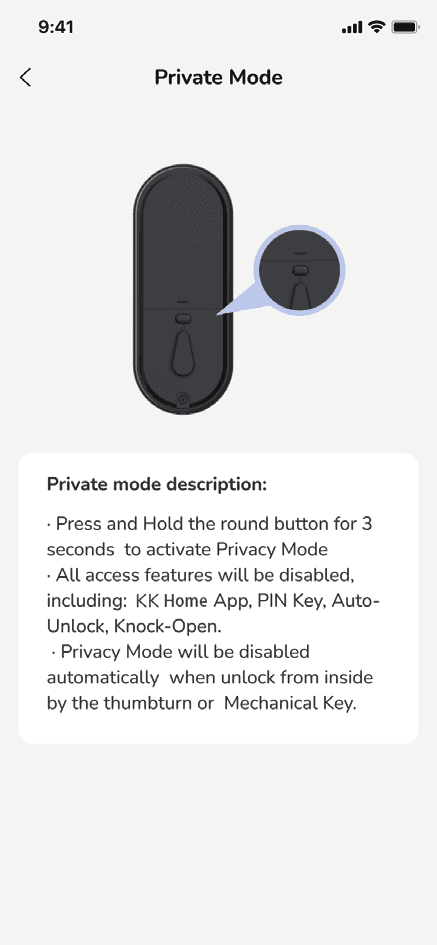
- Push and hold the multifunction button on the inside panel for 3 seconds to activate private mode. This will disable all user PIN codes.
- Private mode will be disabled automatically after the lock is unlocked using the thumb turn or master PIN code.
Share Access
Add a user
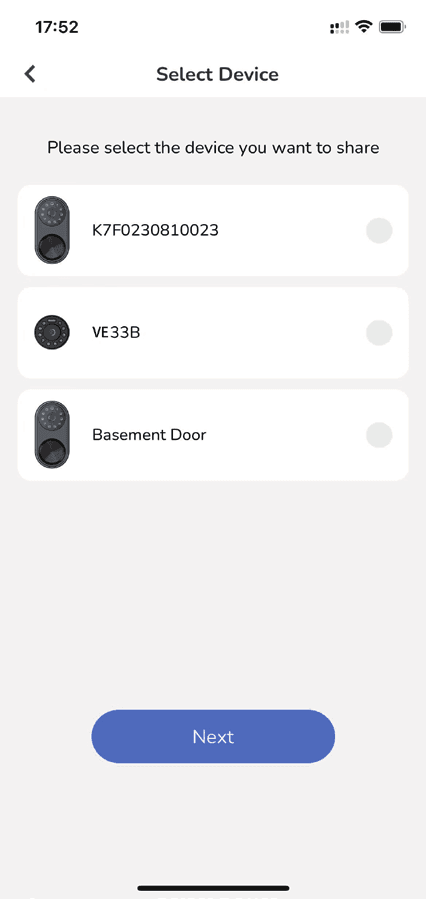
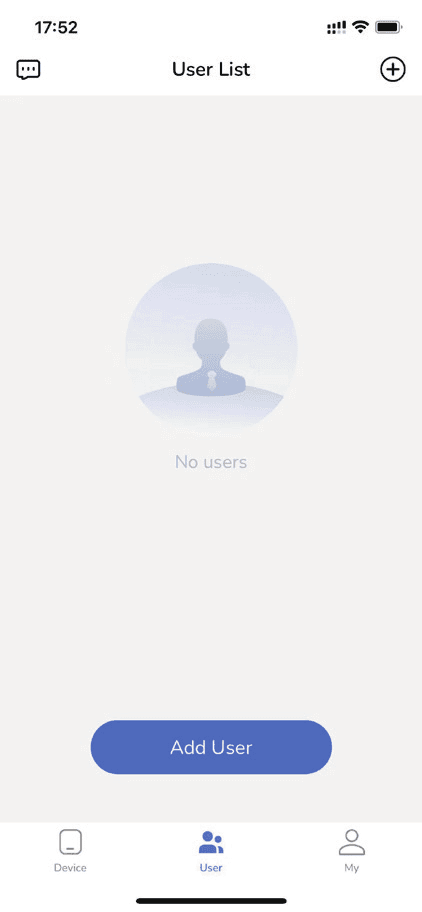
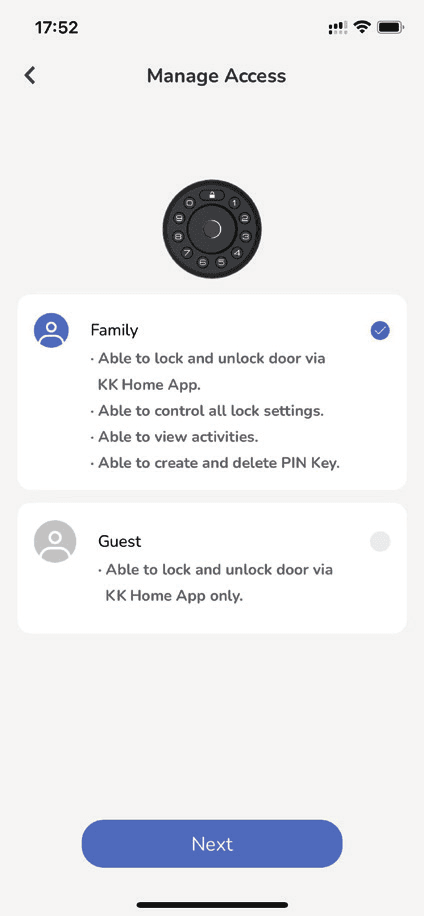
Manage access
Choose the access level for the user.
- Family — can lock and unlock the door via the KK Home App, control all lock settings, view activities, and create and delete PIN Keys.
- Guest — can lock and unlock the door via the KK Home App only.
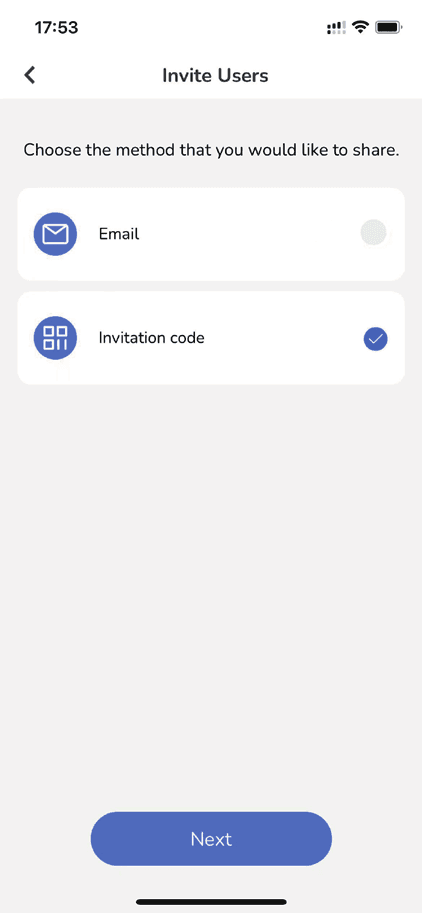
Choose a sharing method
Choose the method you would like to share with: Email or Invitation code.
Share the invitation
Scan the QR code to get access to manage the lock.
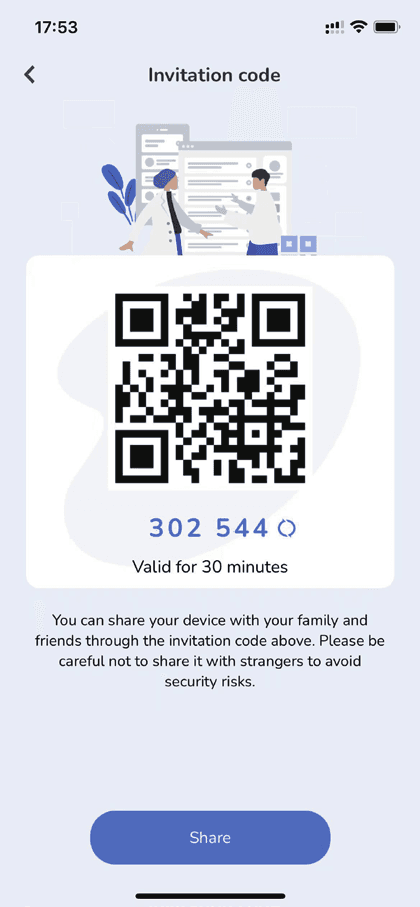
The invitation code is valid for 30 minutes. You can share your device with your family and friends through the invitation code. Please be careful not to share it with strangers to avoid security risks.
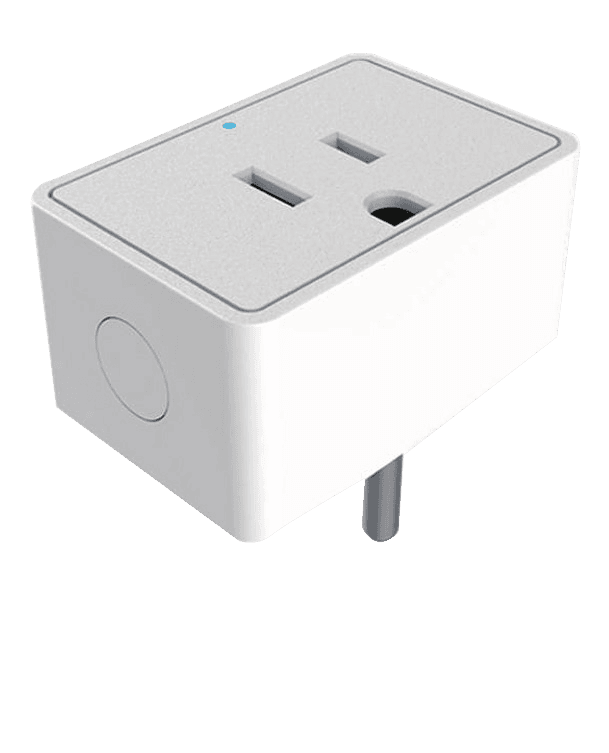
Gateway G1
Connect to the Veise gateway G1 and it will support:
- Unlock/lock remotely in the App
- Work with Google Assistant and Alexa
- Generate, modify, and delete all types of passwords remotely
- Push real-time messages and view real-time records
- View smart lock status
- Check the battery level remotely
Integrations
Our locks work with the following software: